Deploy VPN Profile on Mobile Devices
Now we need to deploy each VPN profile to corresponding mobile device. We will use the Apple iPhone and Apple iPad as examples, but steps are typically absolutely the same for other devices too.
To setup VPN connection with DNS Safety we will be using WireGuard application for Apple iOS. Open the AppStore on your iPhone and search for Wireguard, install it to your iPhone.
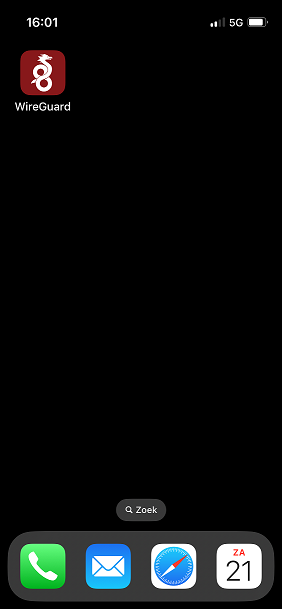
From your desktop browser, navigate to Admin UI / VPN / Clients and click the VPN Settings link for the user1_iphone VPN profile.
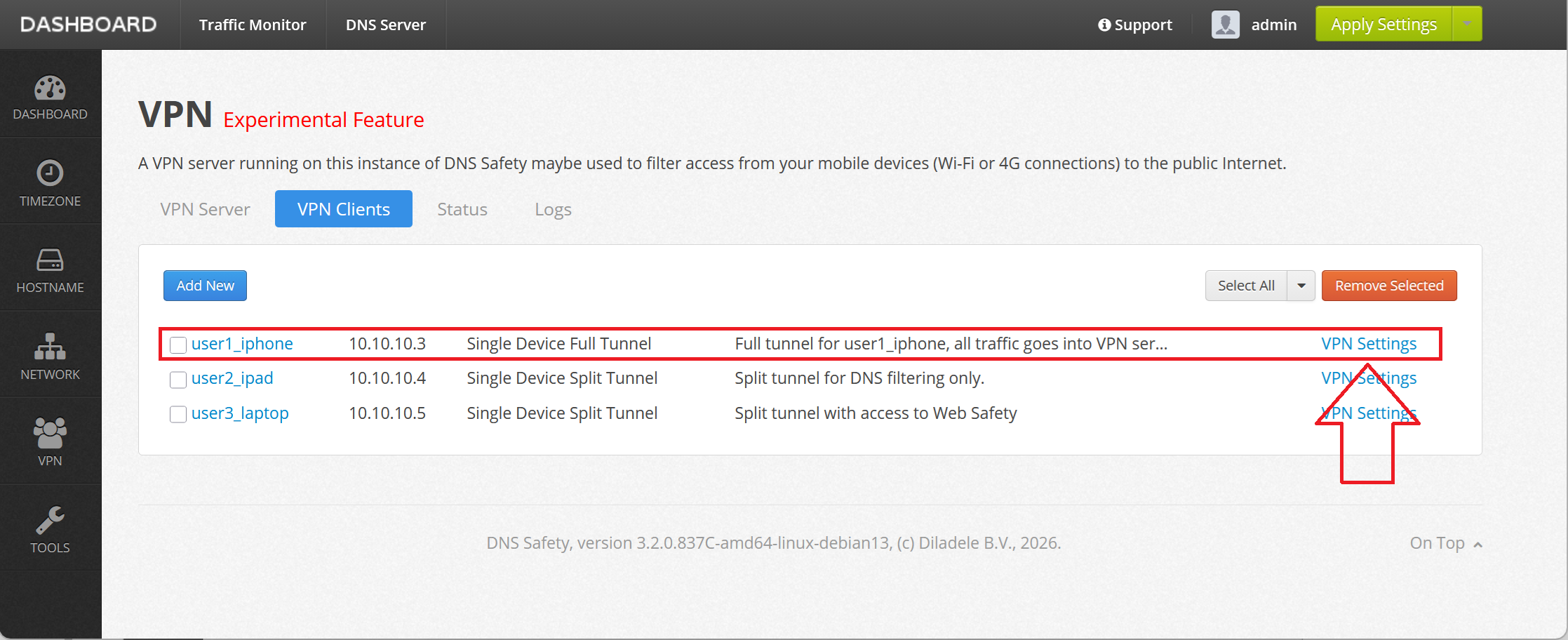
A QR code will be shown for this given user profile.
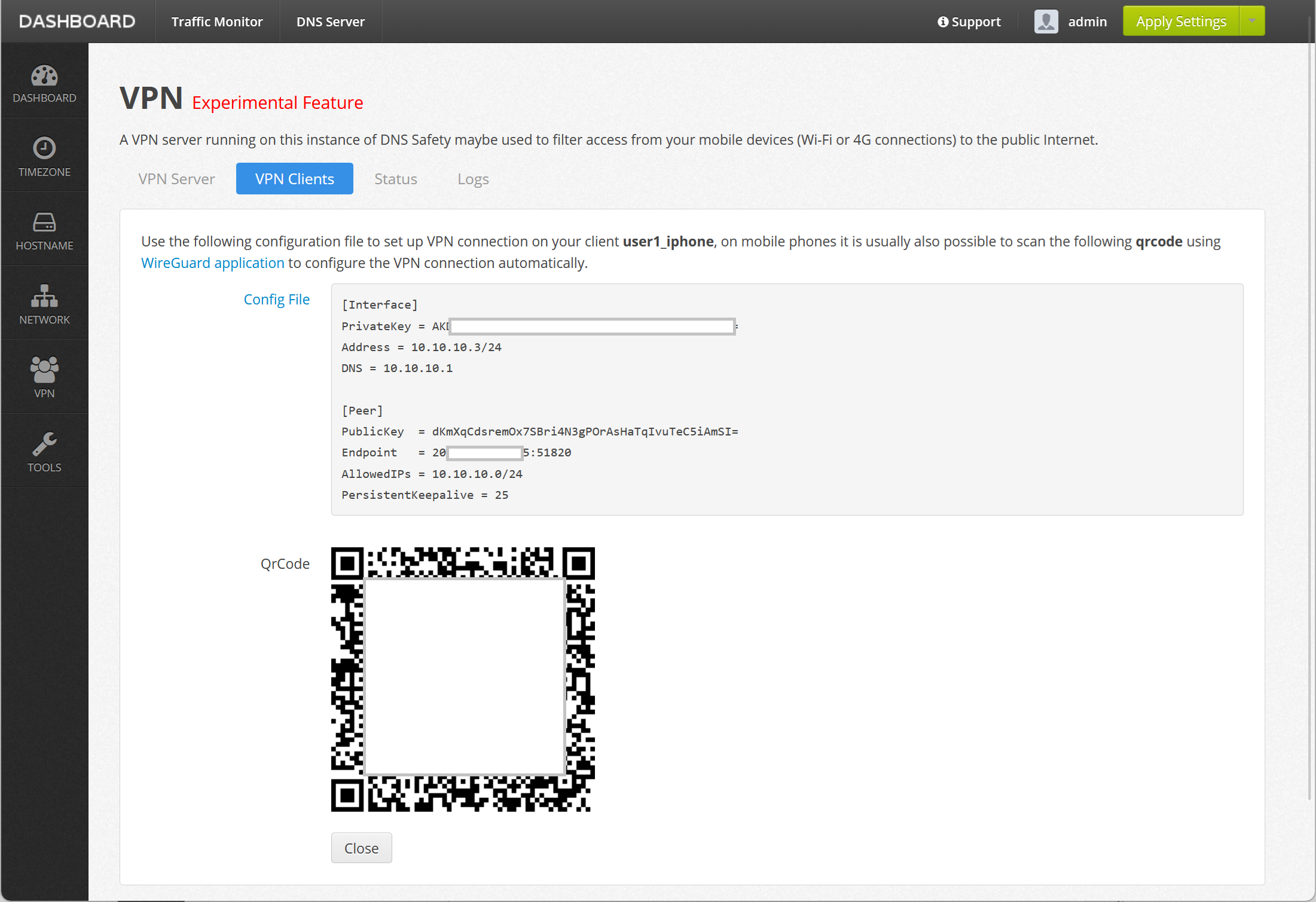
On your iPhone, click the Wireguard icon, and click Add a Tunnel button in the center of the app, select Create from QR code option.
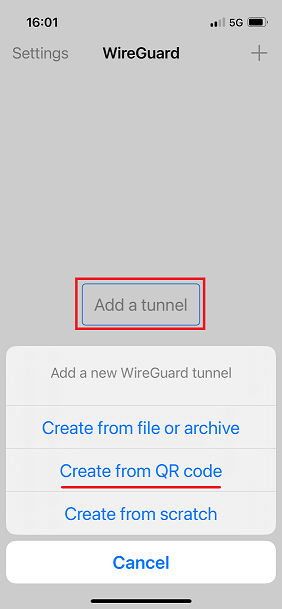
Scan the qrcode, and add click Save to actually add the tunnel to the iPhone.
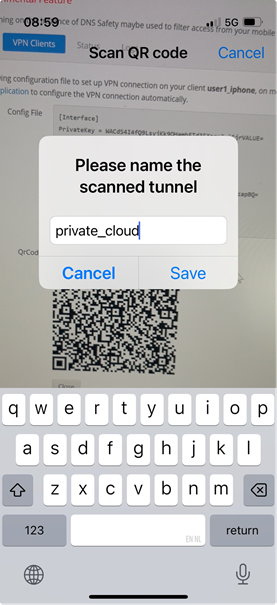
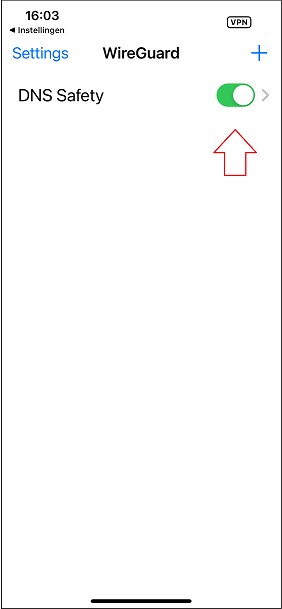
Make sure you have clicked Save and Restart from the Admin UI after adding your VPN clients and configuring VPN server at least once, enable the VPN on your mobile phone.
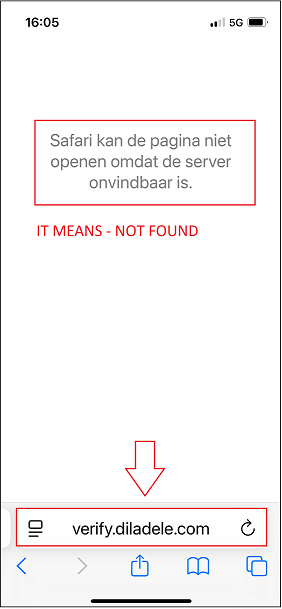
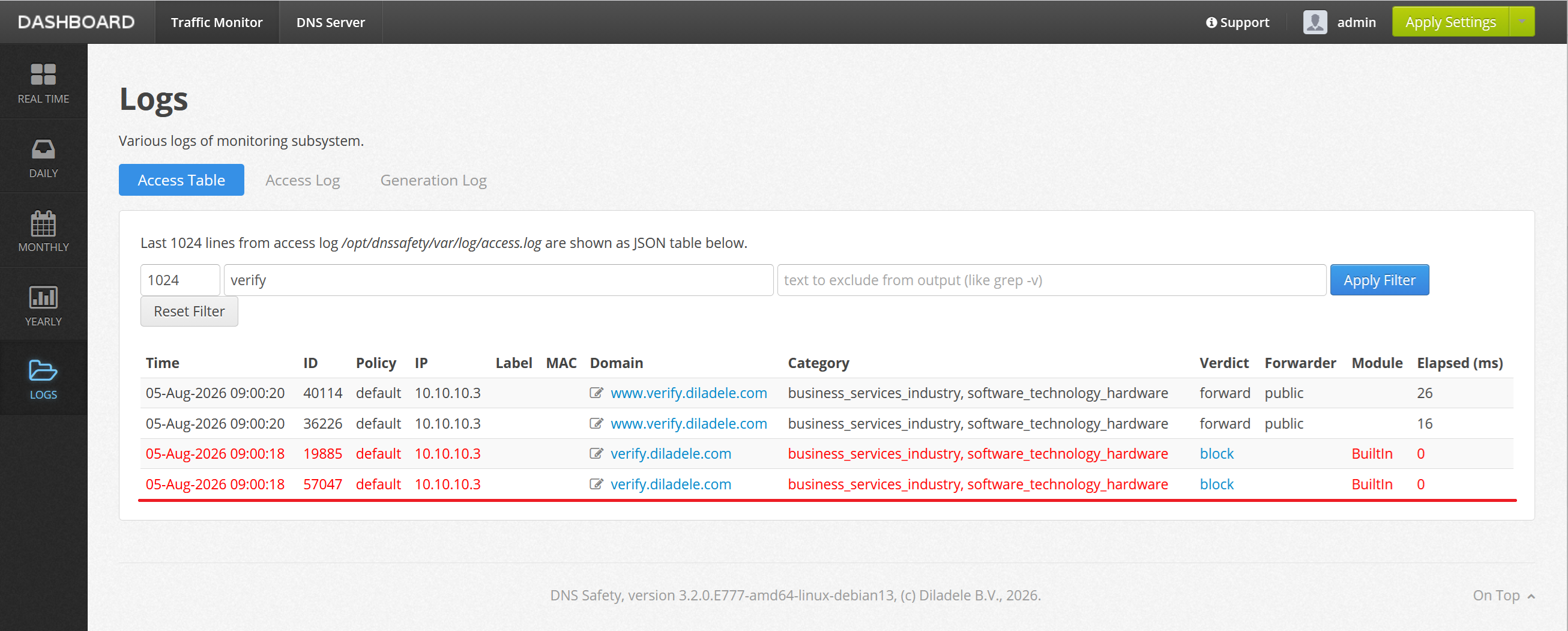
Being connected to 4G/5G network, try to navigate to verify.diladele.com site in Apple Safari. Connection should fail and Admin UI should show a blocked access.
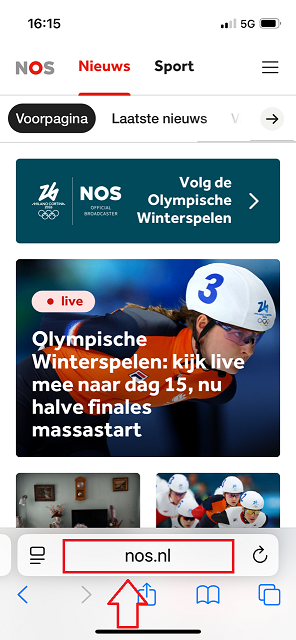
Now try to access a normal web site, like for example nos.nl and make sure you are able to normally browse.
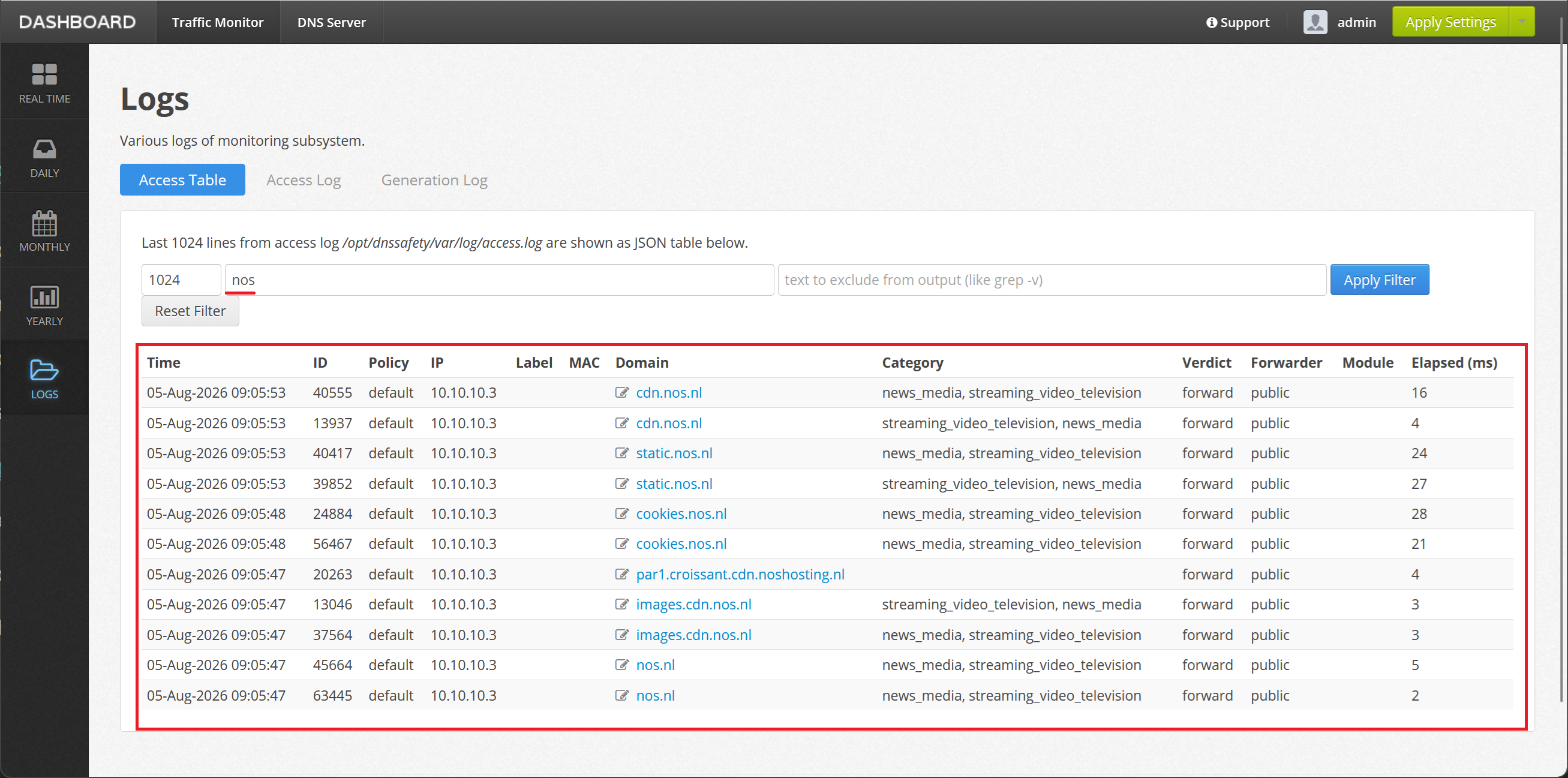
Access to that site should also be visible in Admin UI / Traffic Monitor / Access Log.
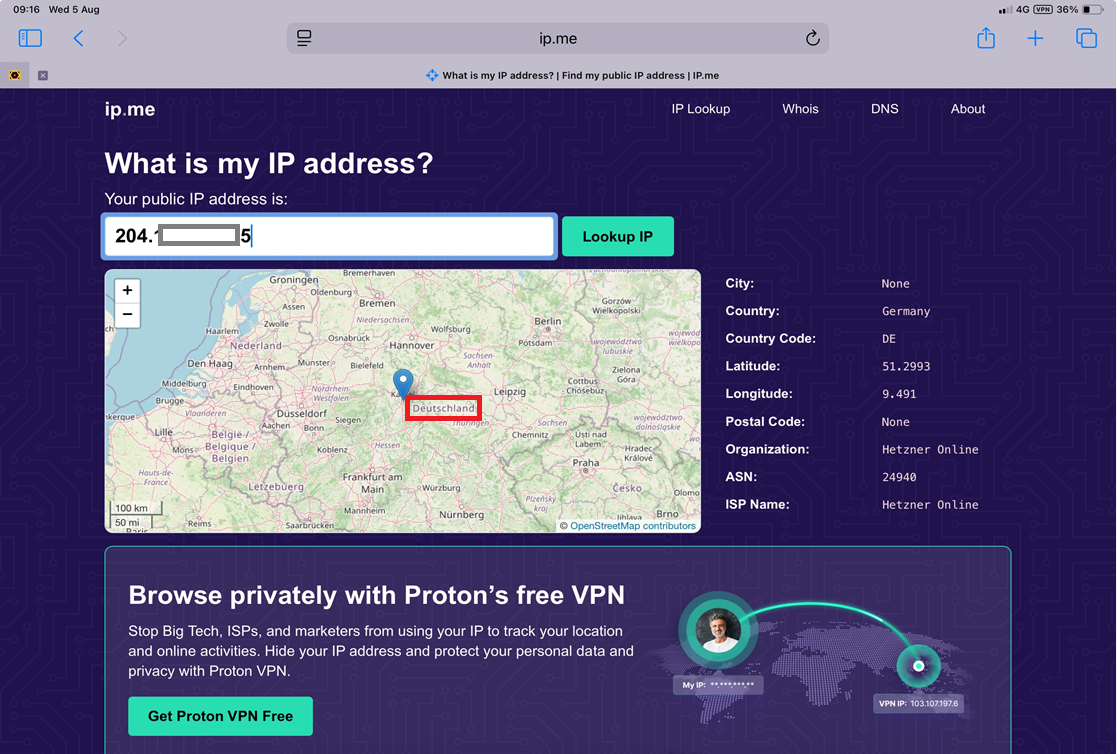
Note, if we have configured a split VPN tunnel for user1_iphone, web sites are able to see the actual IP address of your iPhone.
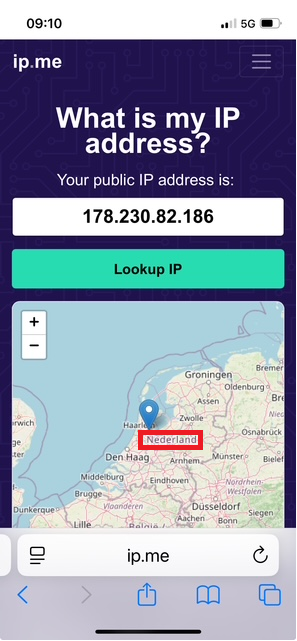
If you have configured the full VPN tunnel instead, the visible public IP address will be from the VPN server, not your iPhone.