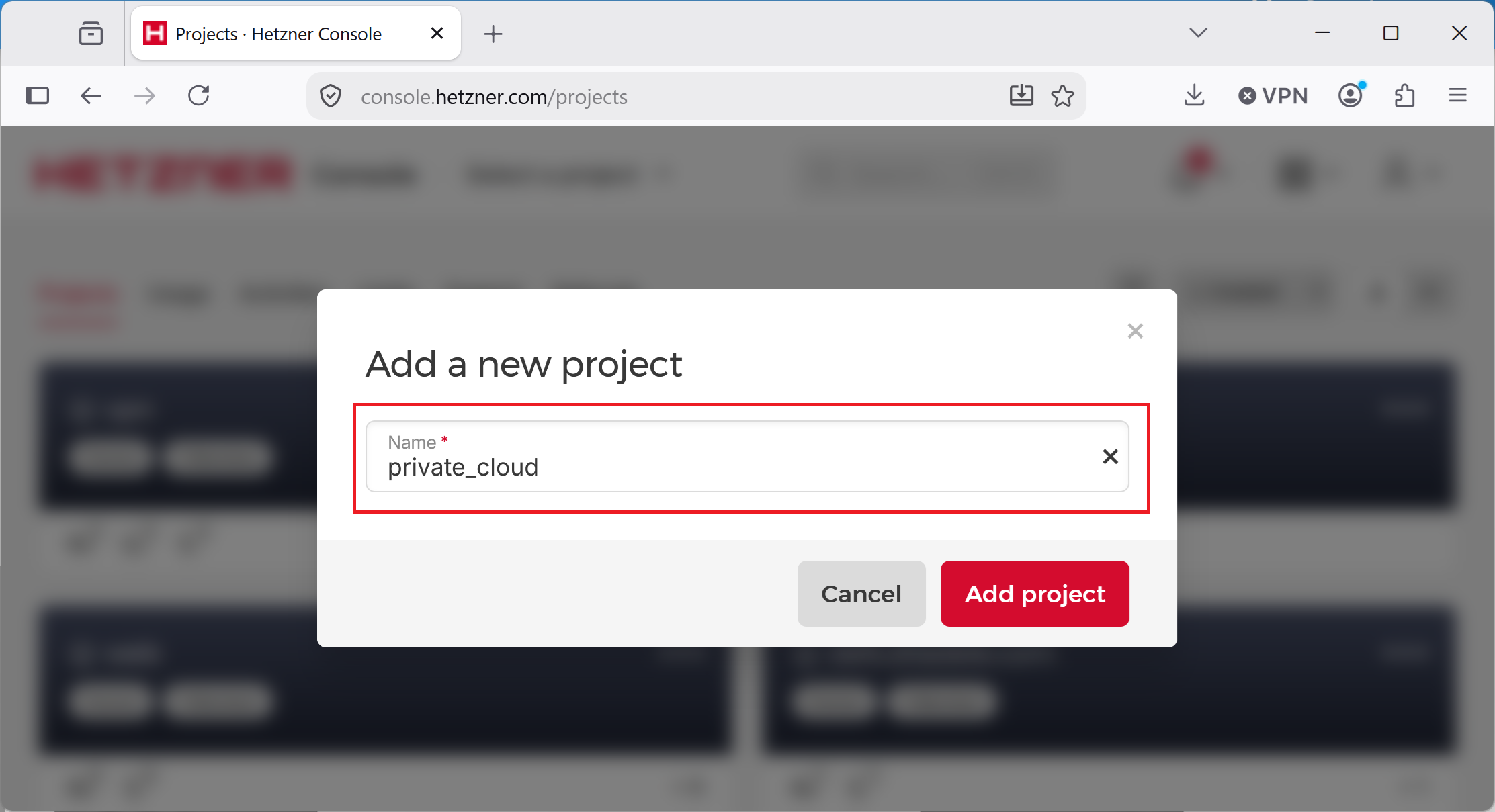
Create a New Cloud Project
All resources in Hetzner will be deployed in a separate cloud project (like a resource group in Microsoft Azure), so open the Hetzner Cloud Console and create a new cloud project as shown on the following screenshot. We will name it private_cloud but you can use any name you like.
Create a Firewall
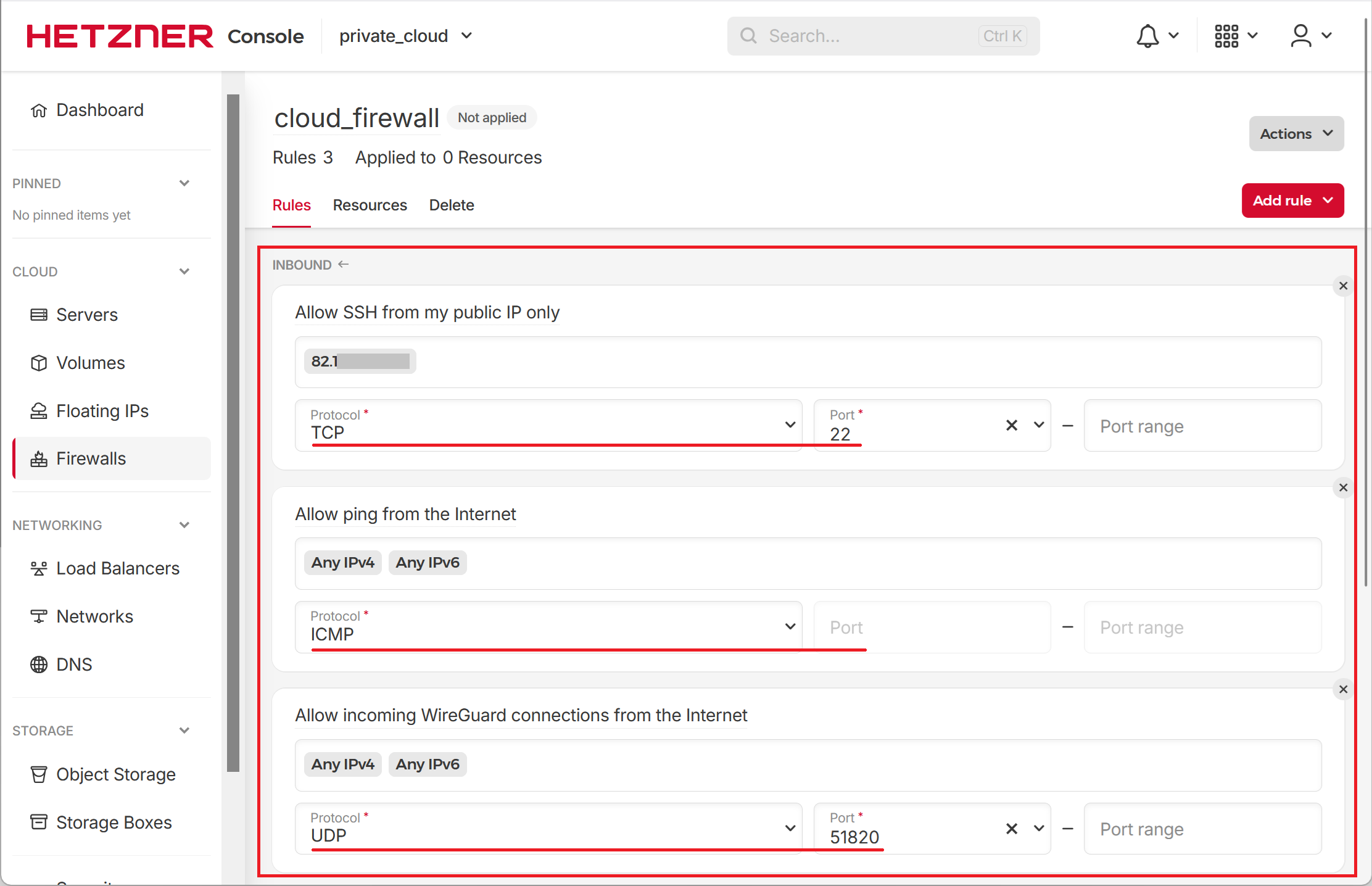
Resources of the cloud project will be protected by the cloud firewall. Create a new firewall, name it cloud_firewall and configure it with the following inbound rules.
| IP Addresses | Protocol | Ports | Description |
|---|---|---|---|
| Your public IP address | TCP | 22 | Allow connections to SSH from my IP address only |
| Any IPv4 and Any IPv6 | leave empty | None | Allow ICMP ping from the whole Internet |
| Any IPv4 and Any IPv6 | UDP | 51820 | Allow WireGuard VPN from the whole Internet |
Create Cloud Network
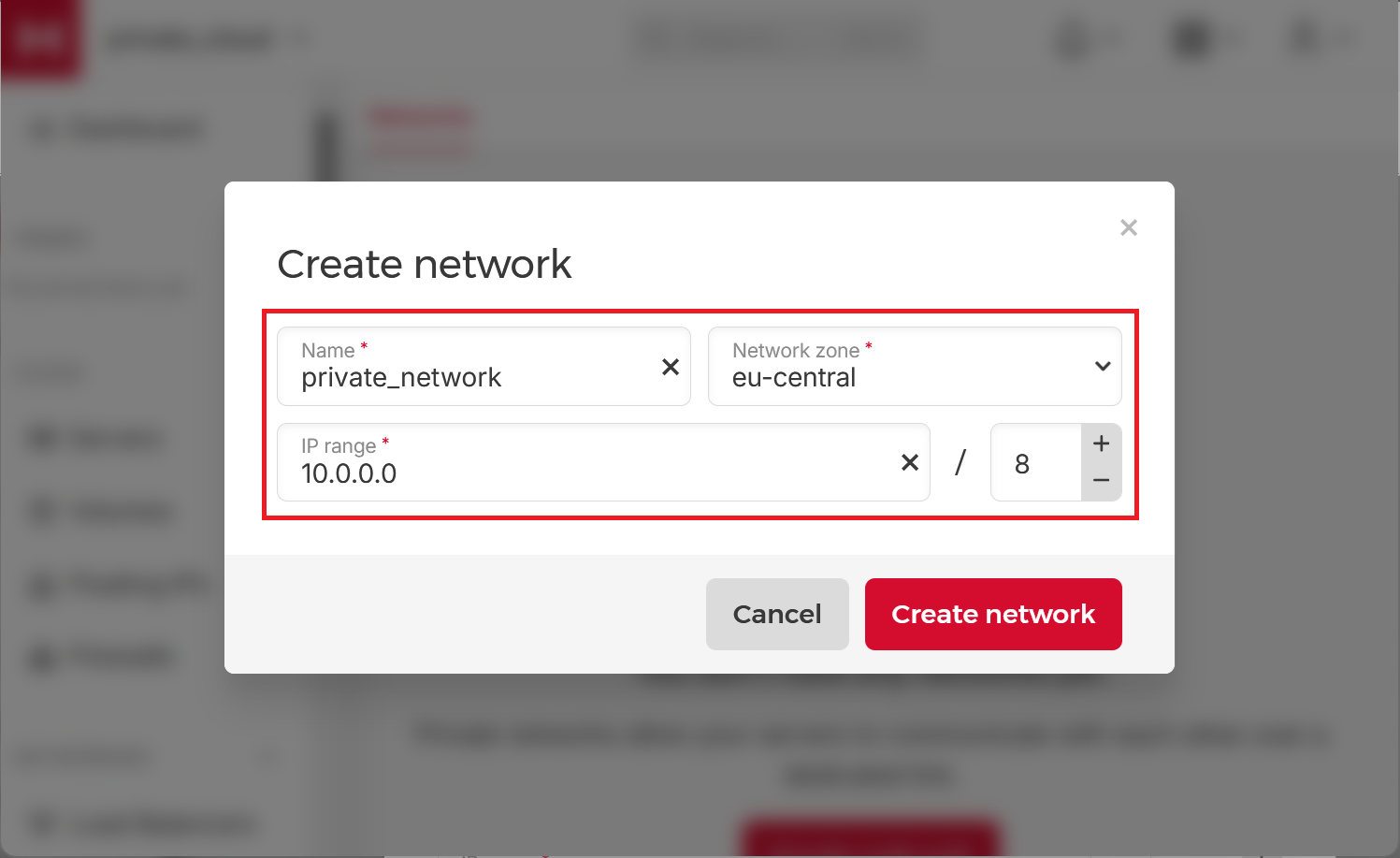
Servers in the cloud project are connected with each other with the help of a cloud network. So, create a new cloud network and name it private_network, and set IP range to 10.0.0.0/8 (this is important) as this will allow us to route traffic between wireguard VPN, Internet clients and internal servers in Hetzner with minimal additional configuration.
Create Cloud Subnet
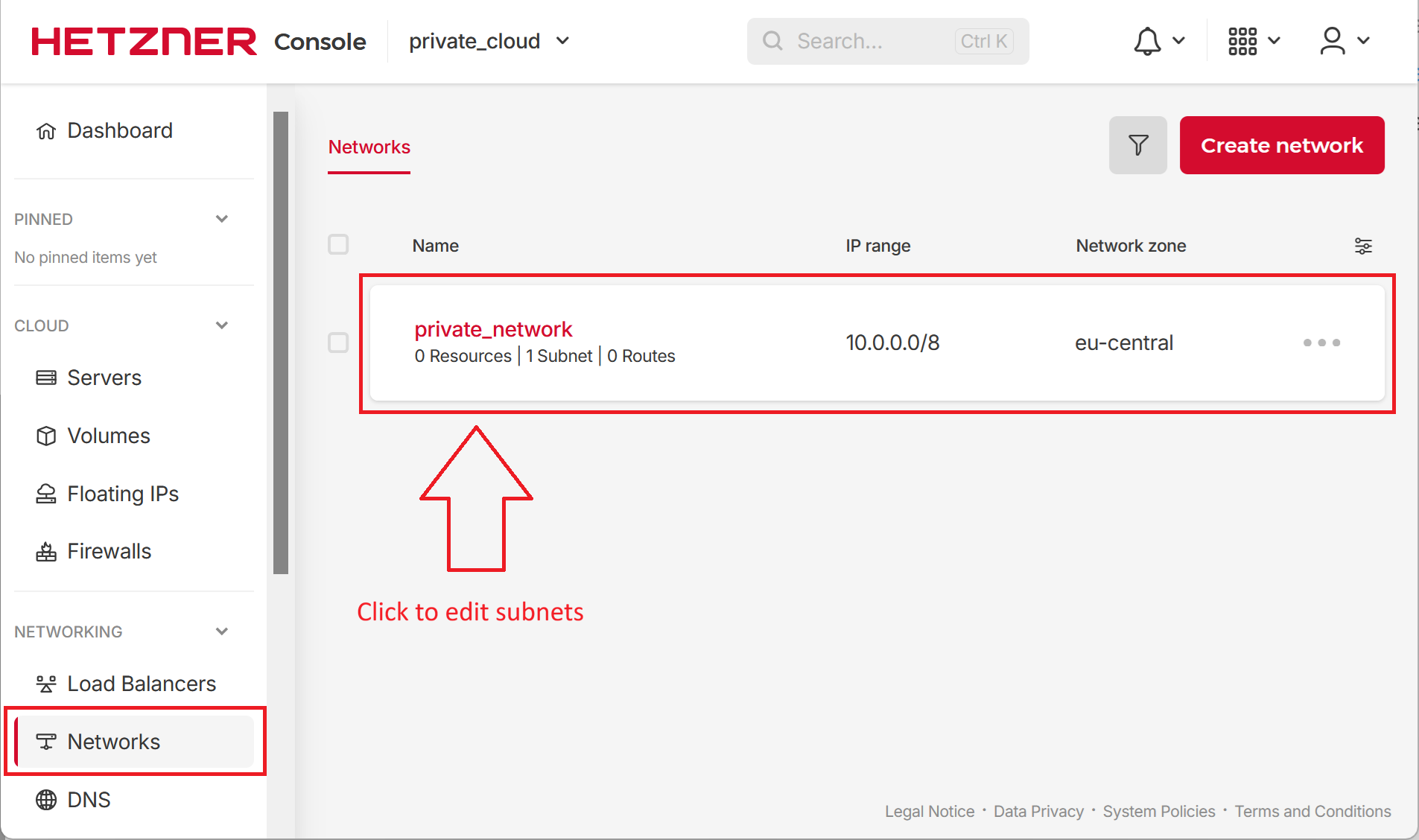
Now we need to edit the subnets within our cloud network. Click the Network node on the left and then the private_network entry.
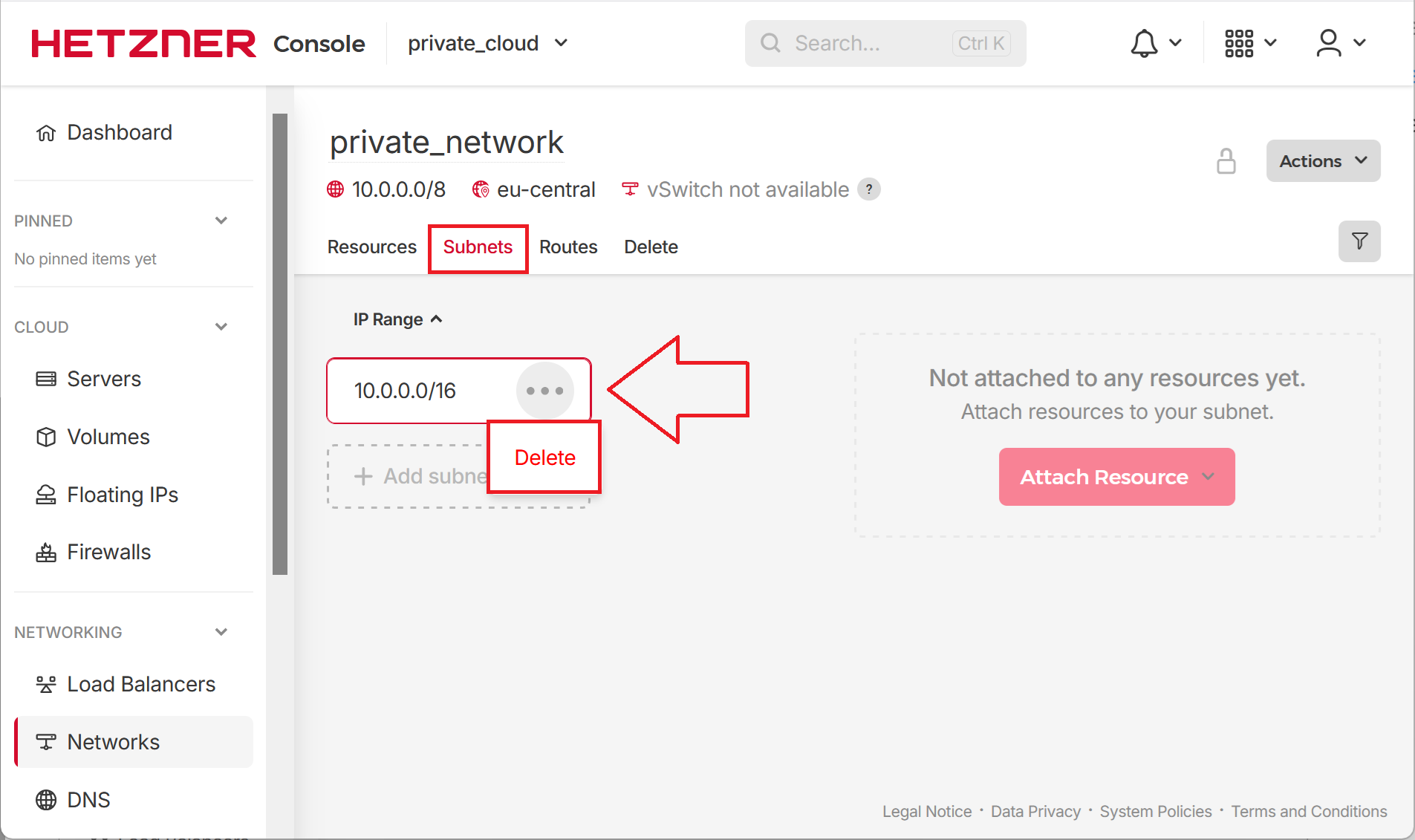
We need to remove the default subnet 10.0.0.0/16 entry that Hetzner created for us as we will create our own subnet matching the network diagram in the introduction to this tutorial. So select the ... on the right of it and click Delete.
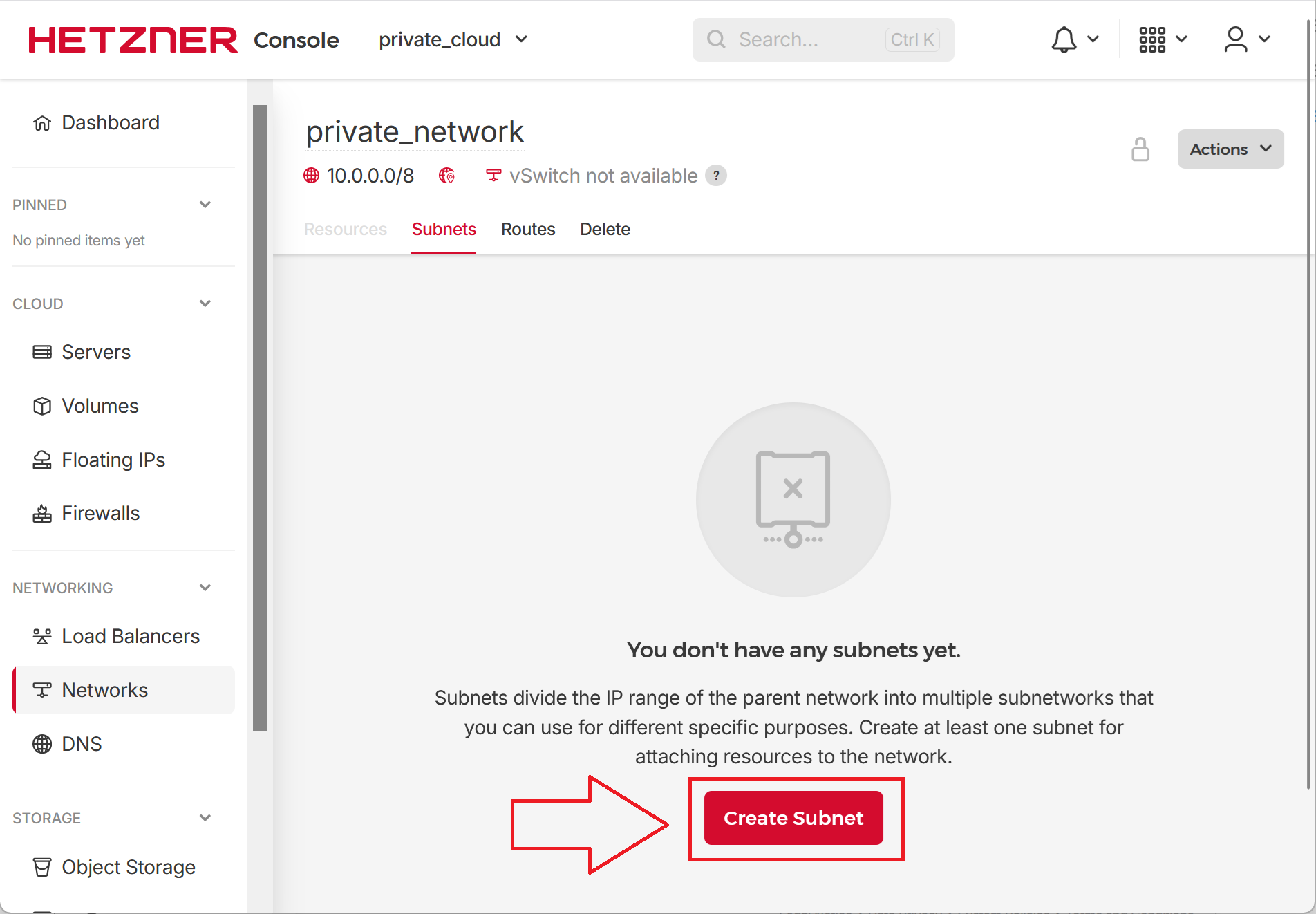
Now we do not have any subnets and can create our own.
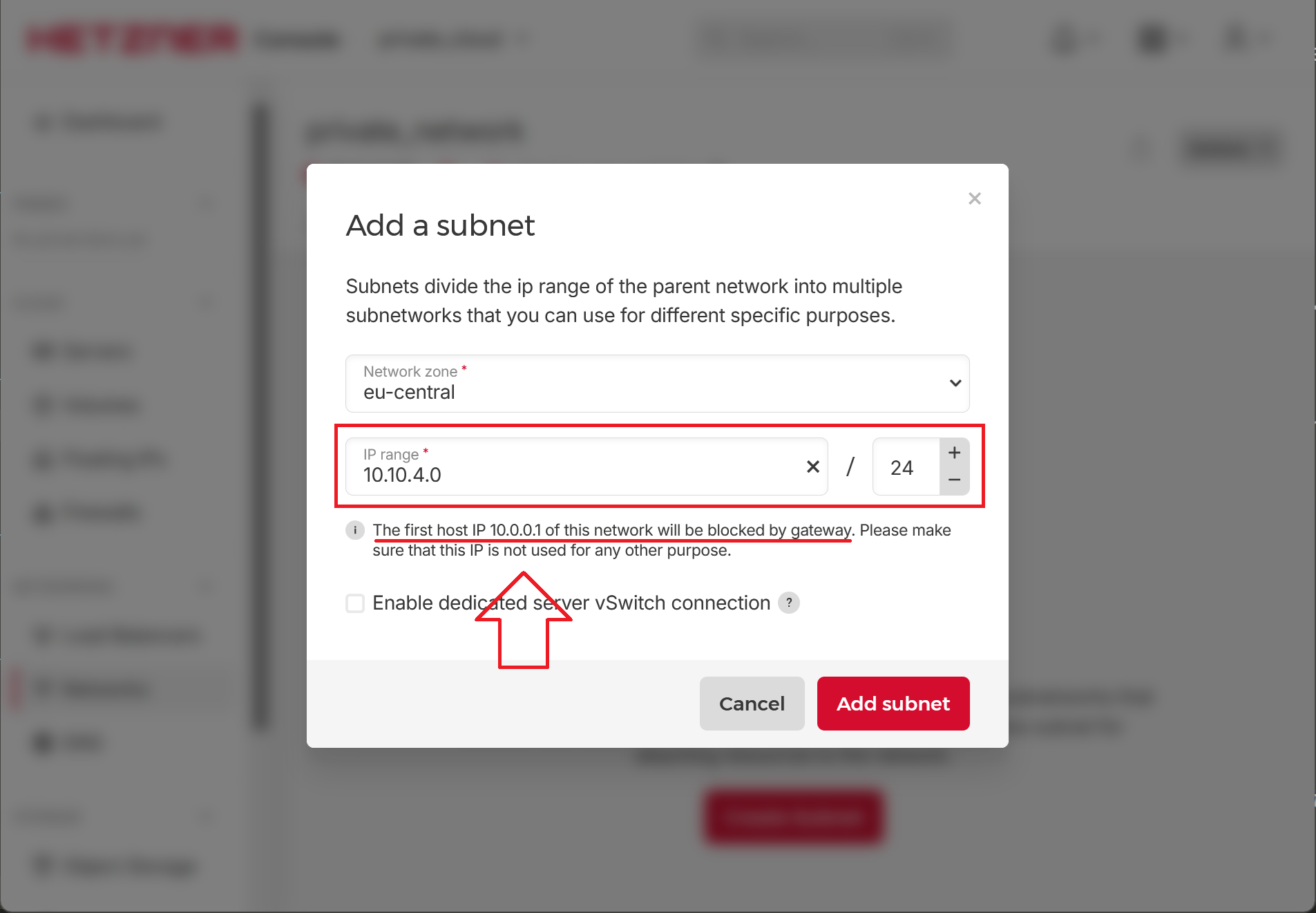
We will use the 10.10.4.0/24 subnet to host DNS Safety and Web Safety servers.
Important
Note the Hetzner warning The first host IP 10.10.4.1 of this network will be blocked by gateway. Please make sure that this IP is not used for any other purpose. This will be very important on the next steps of this tutorial.
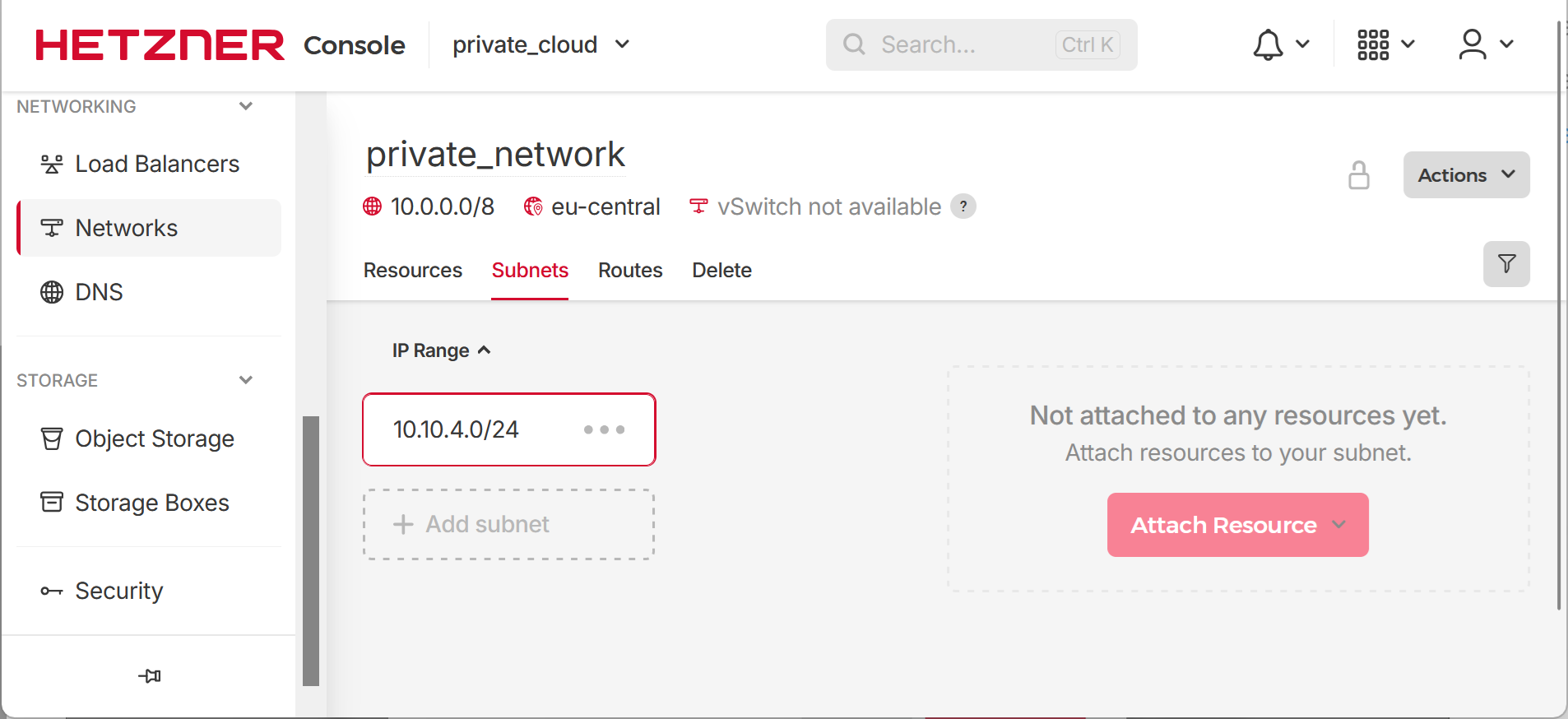
Our subnets will now look like the following. For now, no servers are attached to the subnet.