Deploy Site-to-Site VPN
The final step left is to configure our corporate lan to automatically connect to services in the private_cloud via site-to-site VPN. As our network runs on Mikrotik all instructions will be done for this platform. You would need to adapt the instructions if you are using other type of network access device (router/firewall).
Add Site-to-Site Profile
Add a new user in DNS Safety's Admin UI / VPN / Clients, naming it corporate_lan and set the VPN type to Site to Site Tunnel. As we are going to allow client subnet 10.1.0.0/16 access cloud subnet 10.10.0.0/16 be sure to correctly fill the client and server side subnets settings.
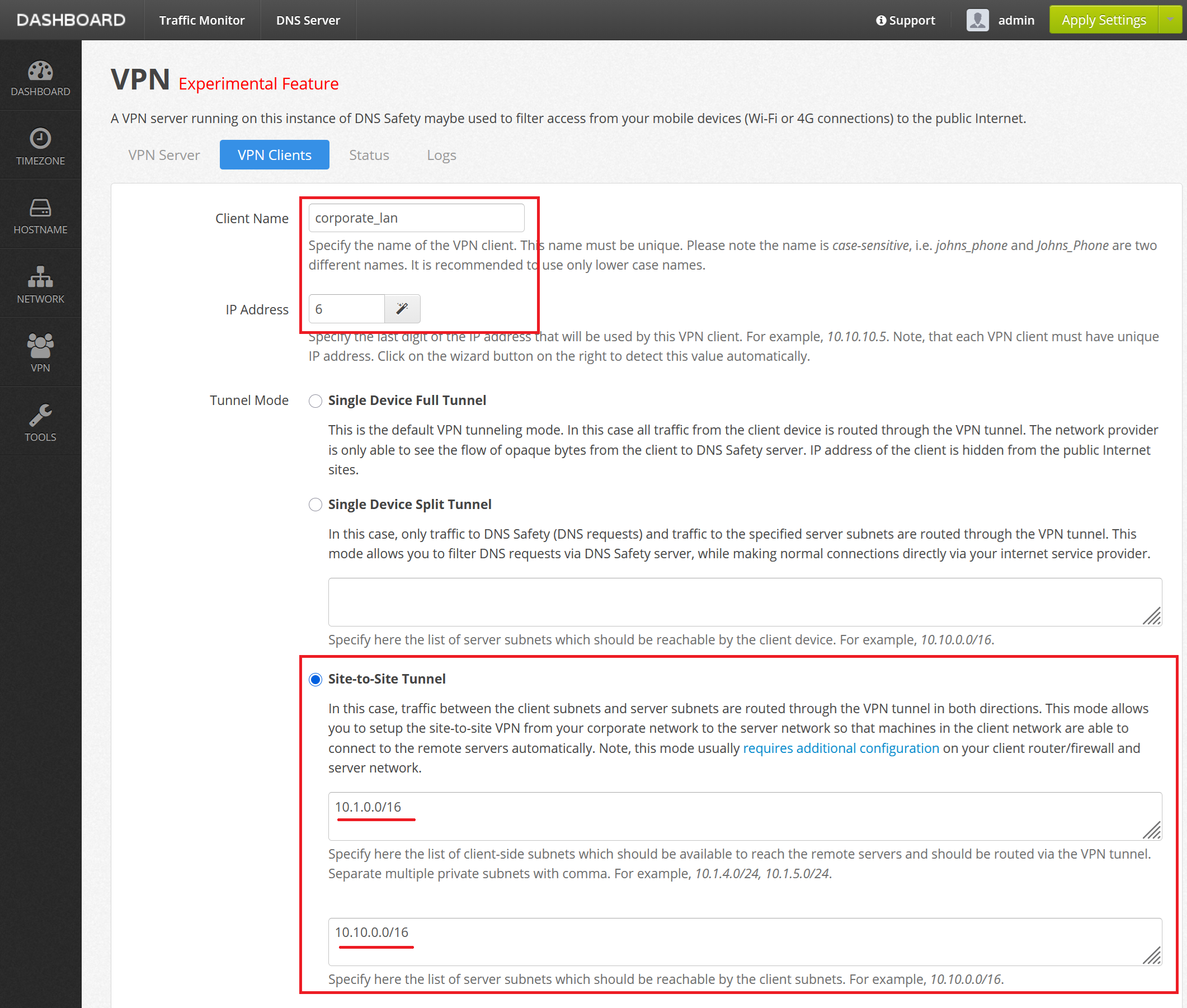
Make a careful note of the generated VPN configuration settings.
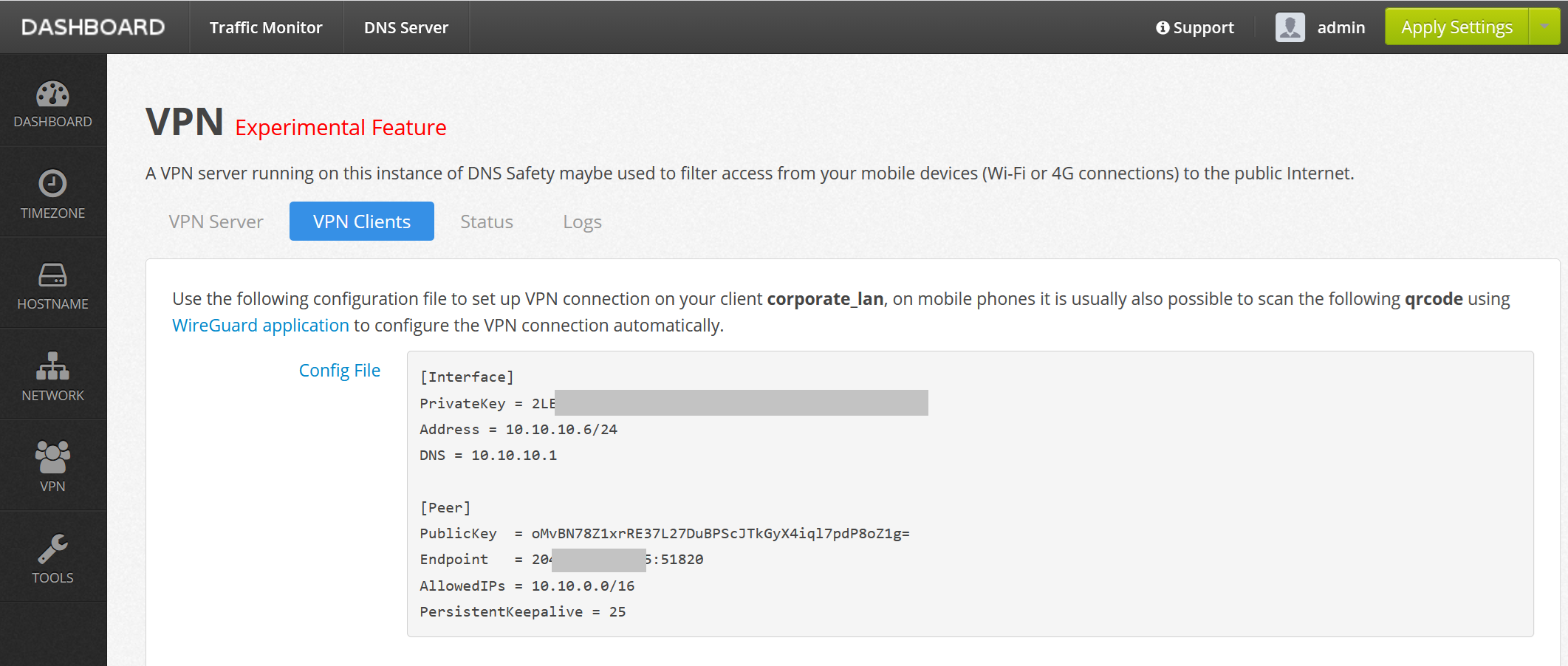
Configure Mikrotik
Open the WinBox on your router and configure the site-to-site VPN, look for additional documentation on the Mikrotik operating manuals site.
Here is the configuration of our Mikrotik router for the reference. Please note, you would need to adjust settings for your network of course.
First we add the wg1 wireguard interface.
# add the wireguard wg1 interface with actual private key from the conf file
/interface/wireguard
add listen-port=51820 name=wg1 \
    private-key="wH2VoBLABLABLABLAdugil/KGtK5uHBLABLAcyPCmk8="
Then we configure the Hetzner peer. The allowed-address is set to the IP subnet of the private cloud 10.10.0.0/16.
# route remote hetzner subnet via wg1
/interface/wireguard/peers
add allowed-address=10.10.0.0/16 endpoint-address=46.225.69.255 endpoint-port=51820 interface=wg1 \
    public-key="EVfKuJMOTuQeddLRUcoEn9qn/XSP8fDE7w2HfkvQGhk="
Add IP address for the wireguard wg1 interface.
And configure the routing.
We also need to allow the traffic in the firewall. Note the following rules must come before the usual last drop all rule.
# navigate to firewall section
/ip/firewall/filter

# note this rule must come before any drop rule, use place-before=N to insert it in the correct order
add action=accept chain=input dst-port=51820 protocol=udp src-address=46.225.69.255 \
    comment="accept wireguard site-to-site vpn from private cloud on hetzner"

# additionally, it is possible that the "forward" chain restricts the communication between
# the subnets as well, so such traffic should be accepted *before any drop rules* as well
add action=accept chain=forward dst-address=10.10.0.0/16 src-address=10.1.0.0/16 \
    comment="allow forwarding to site-to-site vpn from the office lan"

# and reverse too
add action=accept chain=forward dst-address=10.1.0.0/16 src-address=10.10.0.0/16 \
    comment="allow forwarding from site-to-site vpn to our office lan"
Reboot your Mikrotik router just to make sure it will start fresh /system/reboot and try accessing Admin UIs of DNS Safety and Web Safety from your corporate lan. It should work without any errors.
Check Web Filtering
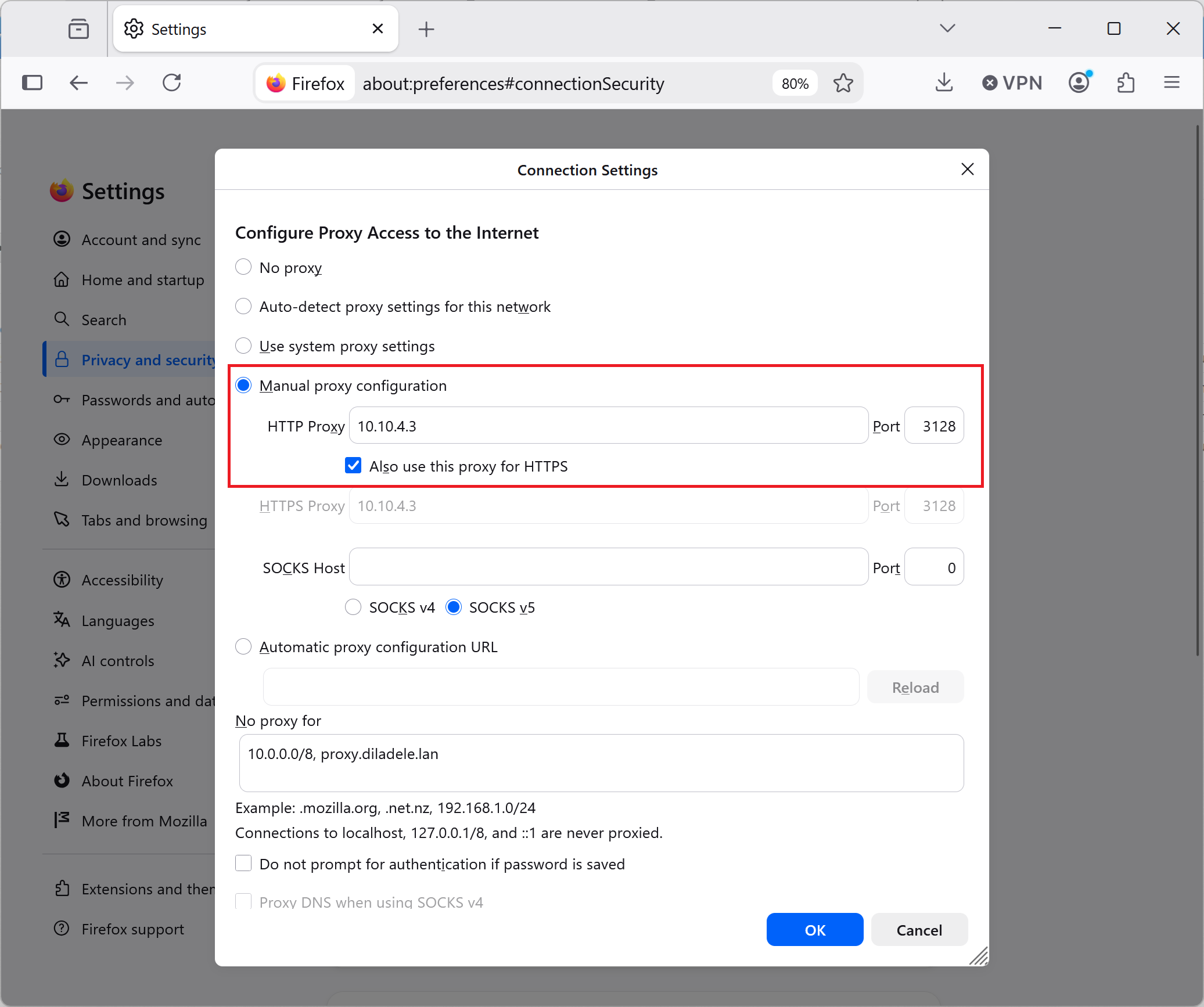
Also try setting the desktop browser in the corporate lan to use the Web Safety cloud secure web gateway.
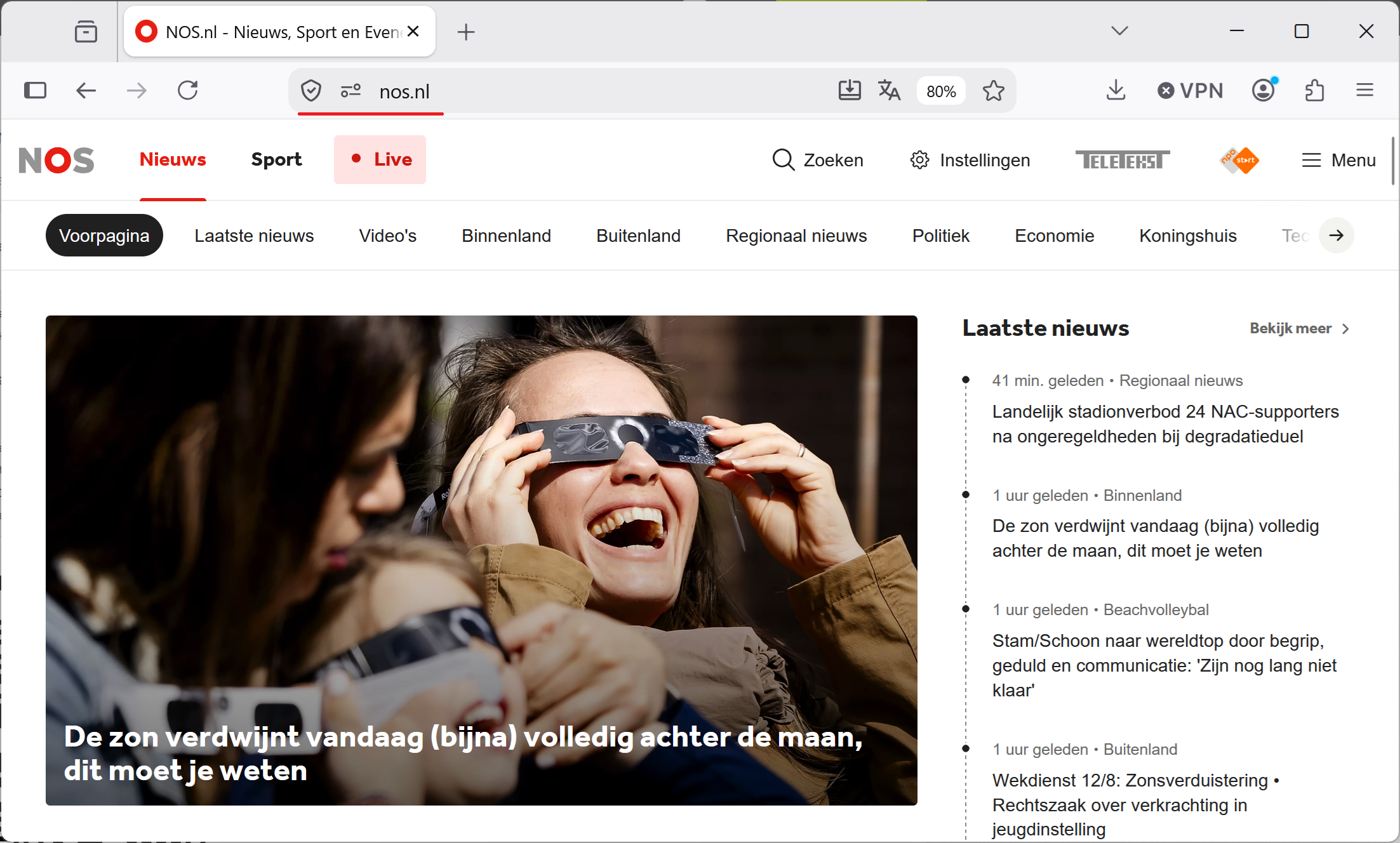
Navigate to a well known web site and make sure it is rendered correctly.
Try accesing a blocked site and make sure it is actually blocked.
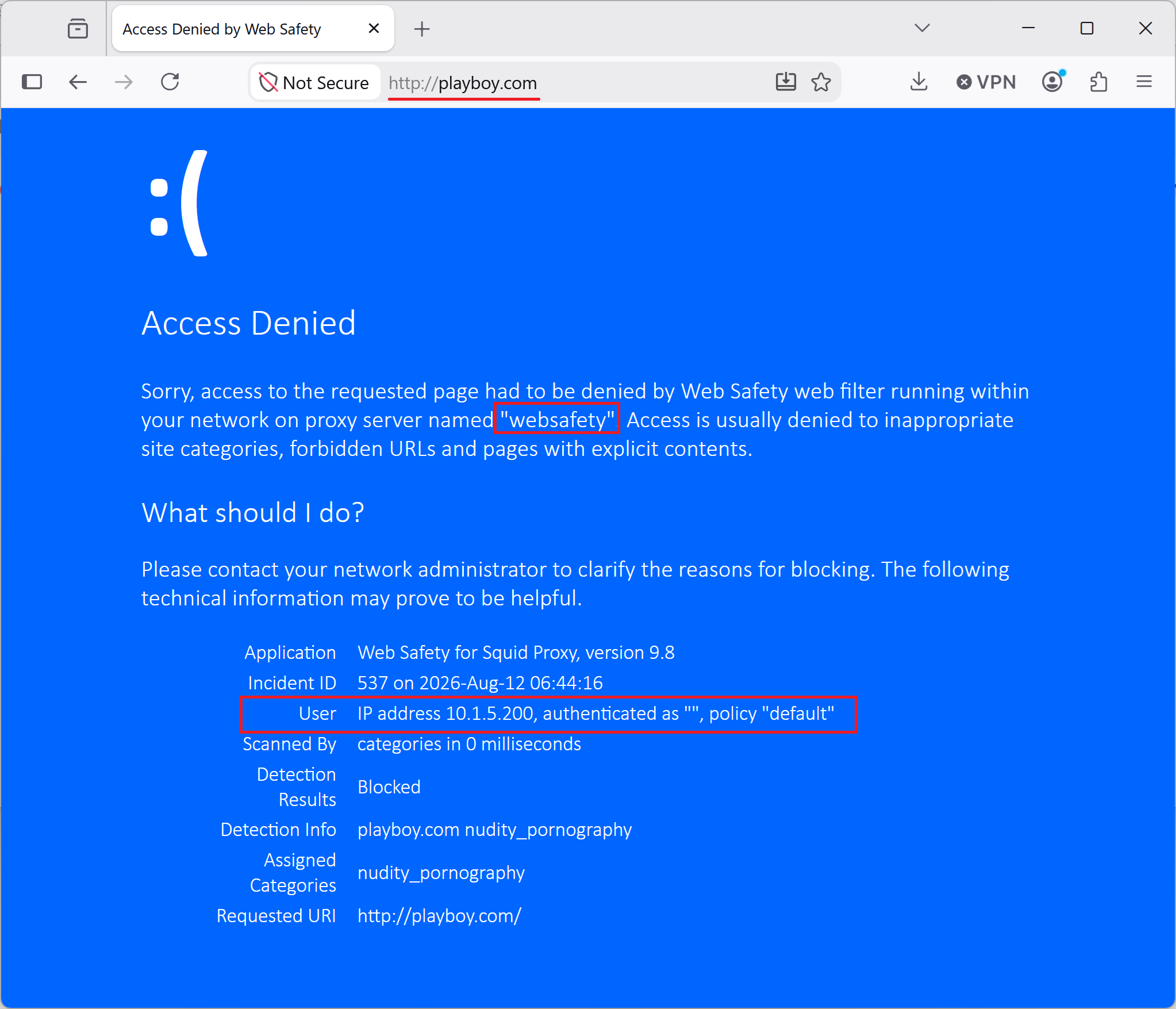
The log in the Admin UI clearly shows access from our corporate lan into the private cloud.
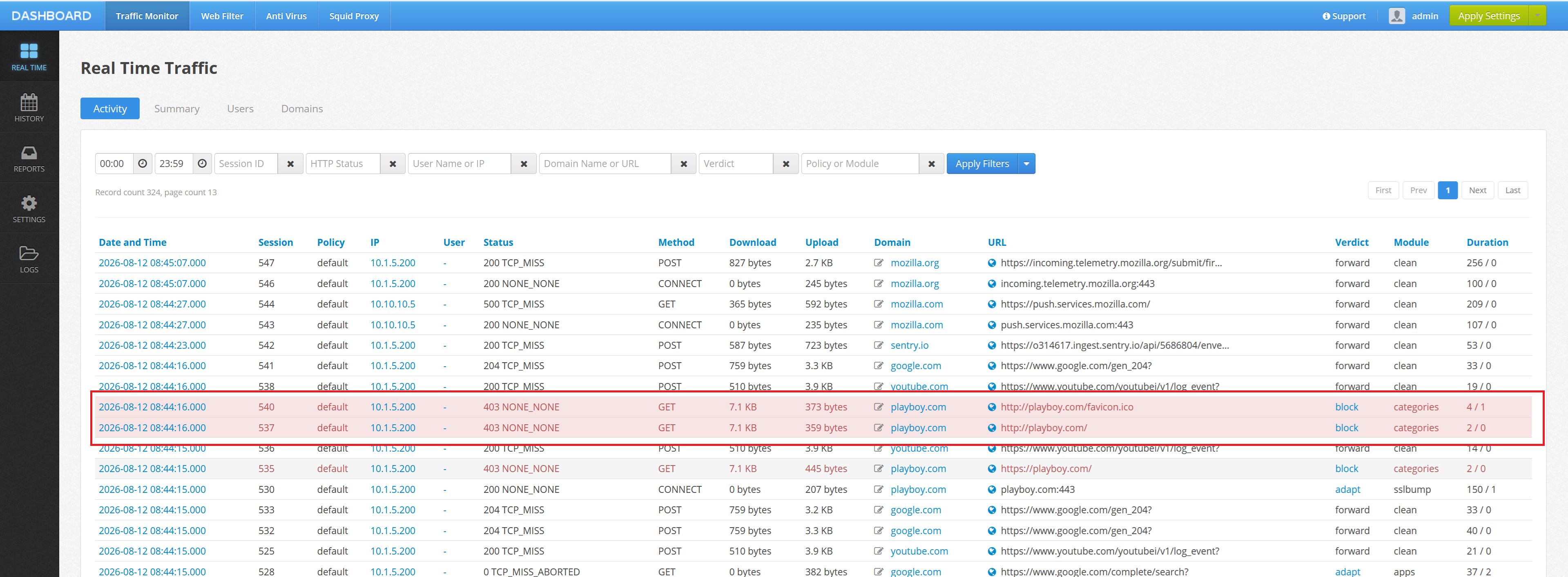
Nice, we have completed the private cloud tutorial and everything works for mobile, laptop and even corporate clients.