How to allow SSH/FTP connections through Squid?
Sometimes, it is required to allow SSH or FTP connections through the proxy. Starting from Web Safety version 9.8 this can be managed in Admin UI / Squid / Settings / Access Control page, the FTP tunnels and SSH tunnels tabs.
Allow FTP Connections through Squid
To allow an FTP connection through Squid, navigate to Admin UI / Squid / Settings / Access Control page, the FTP tunnels tab and add a new FTP connection rule as shown on the following screenshot.

Specify the DNS name of the FTP server, configure FTP port and click Save Settings.

Click Save and Restart from Admin UI.

The Admin UI will then generate the following configuration snippet in the Squid configuration file. It will also add the FTP server to exclusions from HTTPS decryption, proxy authentication and caching.
acl ftp_1_port port 21 1025-65535
acl ftp_1_server dstdomain test.rebex.net
http_access allow CONNECT ftp_1_server ftp_1_port
Finally, configure your FTP client to use the proxy as shown on the following screenshot (we use here the FileZilla FTP as a generic example) and try connecting.

Connection should succeed.

The connection should also be visible in the Admin UI / Traffic Monitor / Real Time access log.

Allow SSH Connections through Squid
To allow a SSH connection through Squid, navigate to Admin UI / Squid / Settings / Access Control page, the SSH tunnels tab and add a new SSH connection rule as shown on the following screenshot.

Specify the DNS name of the SSH server, configure SSH port and click Save Settings. Note in this example we allow SSH connections to .diladele.com (with leading dot) which means any sub domain of the main domain.

Click Save and Restart from Admin UI.

The Admin UI will then generate the following configuration snippet in the Squid configuration file. It will also add the SSH server to exclusions from HTTPS decryption, proxy authentication and caching.
acl ssh_1_port port 22
acl ssh_1_server dstdomain .diladele.com
http_access allow CONNECT ssh_1_server ssh_1_port
Finally, configure your SSH client to use the proxy as shown on the following screenshot (we use here the WinSCP client as a generic example) and try connecting.

Connection should succeed.
2026-06-11 09:49:55.766 Leaving host lookup to proxy of "defs.diladele.com"
2026-06-11 09:49:55.766 Will use HTTP proxy at proxy.diladele.lan:3128
to connect to defs.diladele.com:22
2026-06-11 09:49:55.766 Looking up host "proxy.diladele.lan" for proxy
2026-06-11 09:49:55.767 Connecting to HTTP proxy at 192.168.4.10 port 3128
2026-06-11 09:49:55.767 Connecting to 192.168.4.10 port 3128
2026-06-11 09:49:55.788 We claim version: SSH-2.0-WinSCP_release_5.19
2026-06-11 09:49:55.815 Remote version: SSH-2.0-OpenSSH_7.6p1 Ubuntu-4ubuntu0.7
2026-06-11 09:49:55.815 Using SSH protocol version 2
...
2026-06-11 09:49:55.969 Using username "user".
2026-06-11 09:49:56.011 Server offered these authentication methods: publickey
2026-06-11 09:49:56.011 Offered public key
2026-06-11 09:49:56.028 Offer of public key accepted
2026-06-11 09:49:56.028 Authenticating with public key "imported-openssh-key"
2026-06-11 09:49:56.146 Sent public key signature
2026-06-11 09:49:56.162 Access granted
2026-06-11 09:49:56.163 Opening main session channel
2026-06-11 09:49:56.956 Opened main channel
2026-06-11 09:49:56.972 Started a shell/command
The connection should also be visible in the Admin UI / Traffic Monitor / Real Time access log.

Manual Configuration on Earlier Web Safety
If you have an older version of Web Safety, the same actions can be performed by configuring some advanced ACLs for Squid.
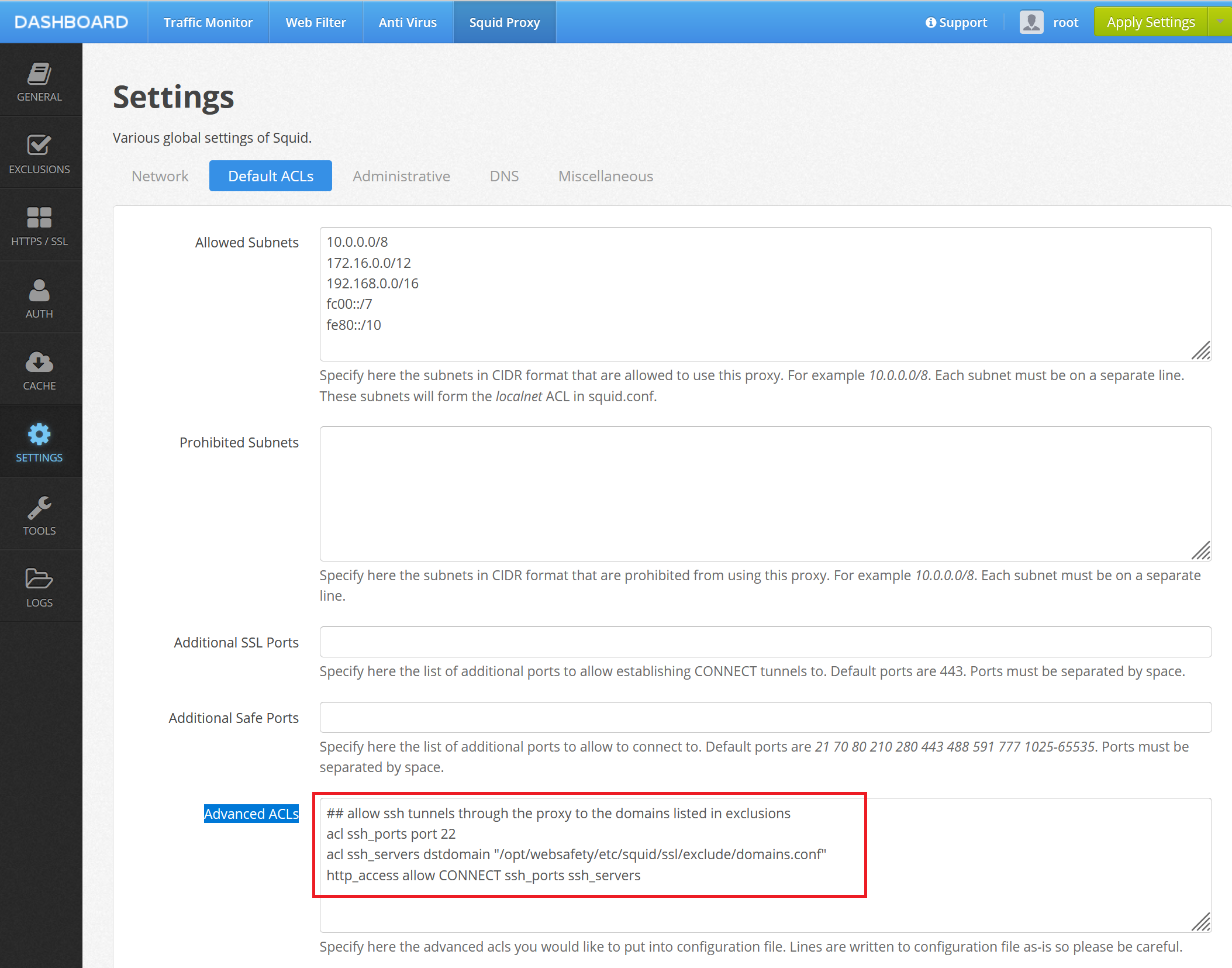
In Admin UI / Squid Proxy / Settings / Default ACLs add the following lines to the Advanced ACLs text field as shown on the following screenshot. Note how these acls need to be added in the Advanced ACLs field and not in the Advanced http_access field.
# allow FTP connections to REBEX
acl rebex_port port 21 1025-65535
acl rebex_server dstdomain .rebex.net
http_access allow CONNECT rebex_server rebex_port
Next step is to add the domain name and IP address that domain name resolves to to the Admin UI / Squid Proxy / Exclusions.
It might also be a good idea to add both domain name and its IP address. This is because the client software (FTP mostly) may establish tunnels to the remote server first by domain name and later by IP address.

Finally, click Save and Restart from Admin UI and try using your application to access the desired domain by SSH and/or FTP.